Set up Fortnite reticle visibility on PC, organize the mobile HUD around the screen center, choose a touch firing mode, and understand the game's native limits.
Use the native path for each device—not a code.
- Import code
- Not supported
- Desktop path
- Game UI → Reticle
- Mobile path
- HUD Layout Tool
1. Know what Fortnite lets players change
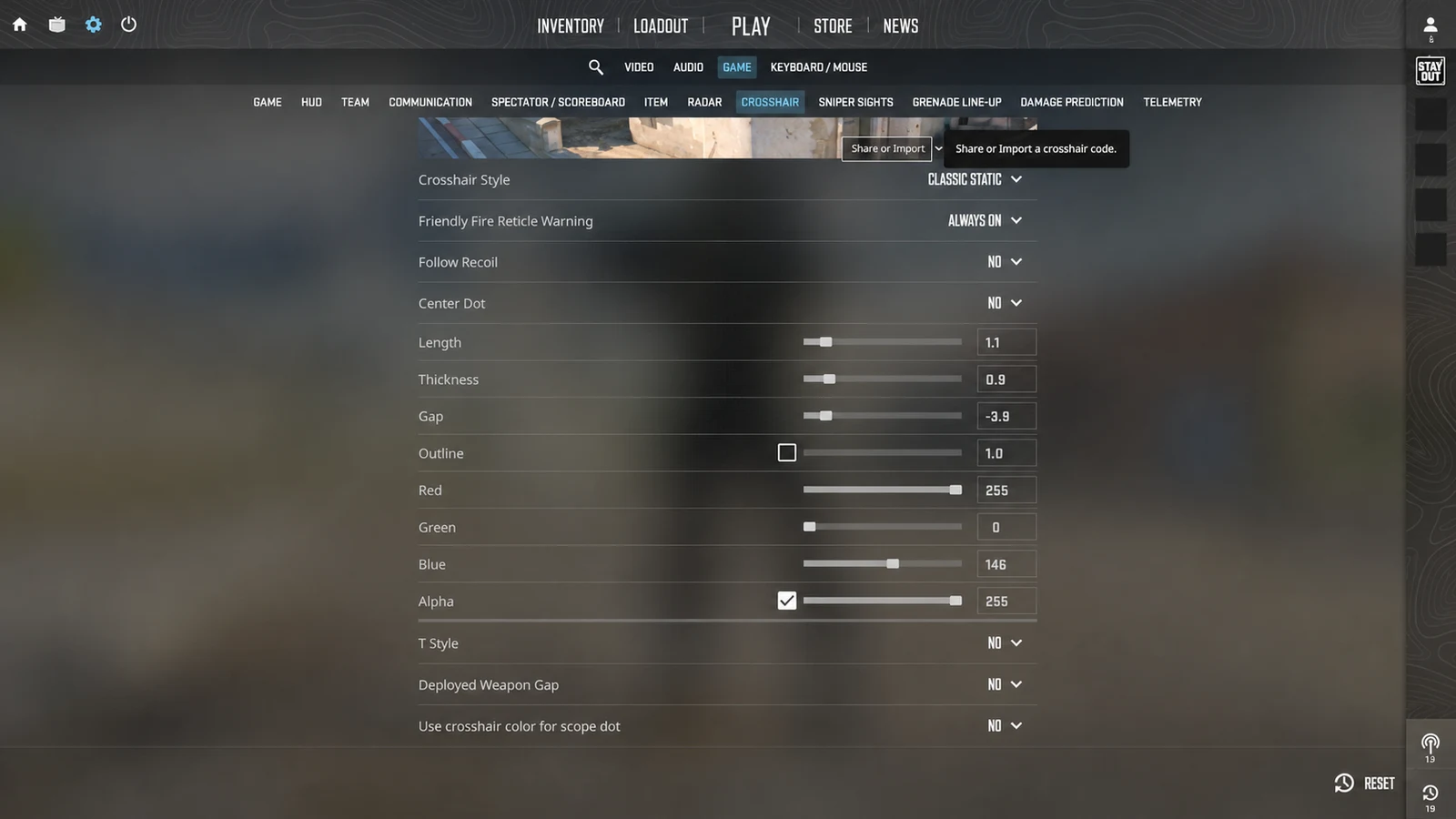
The standard player settings expose Reticle & Damage Feedback options. They let you manage whether the reticle and related ammo or damage information appear, but they do not provide a custom shape, line-length, gap, color, or profile-code editor.
The active weapon controls the aiming shape. A shotgun, rifle, scoped weapon, or special item may use a different reticle, so there is no single web-generated geometry that can accurately replace every in-game state.
- Reticle visibility: available in Game UI.
- Ammo and damage feedback: configurable.
- Player-defined shape and color: not exposed in the standard settings.
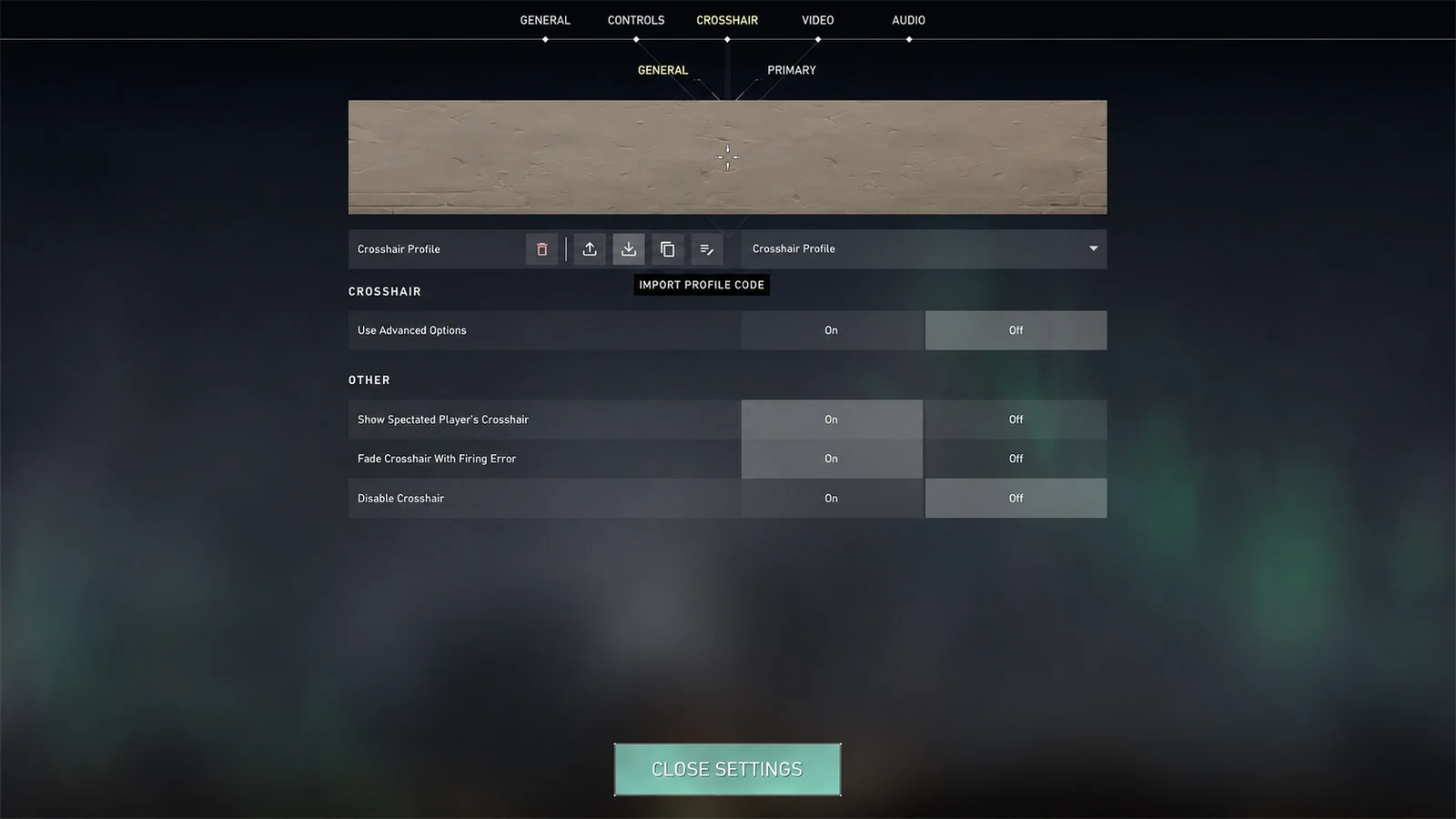
- Native import code: not supported.
Use Crosshair Games as a settings guide for Fortnite, not as an overlay injector or a source of a nonexistent import code.
2. Configure the reticle on PC

- 01Menu
- 02Settings
- 03Game UI
- 04Reticle
Open the menu in the upper-left corner, choose Settings, select Settings in the left column, and open the Game UI tab. Under Reticle & Damage Feedback, turn Reticle on and choose the ammo and damage indicators you want.
Return to a safe match or training area and equip several weapon classes. Check that the center remains visible without confusing the weapon reticle with hit markers, damage numbers, or the ammo indicator.
- Menu → Settings → Settings → Game UI.
- Open Reticle & Damage Feedback.
- Enable Reticle and choose feedback elements.
- Test rifles, shotguns, and scoped weapons separately.
3. Configure the reticle and HUD on mobile
Open the in-game menu, choose Settings, select the gear, then open Game UI and scroll to the HUD section. Confirm that the Reticle and the HUD elements you need are visible.
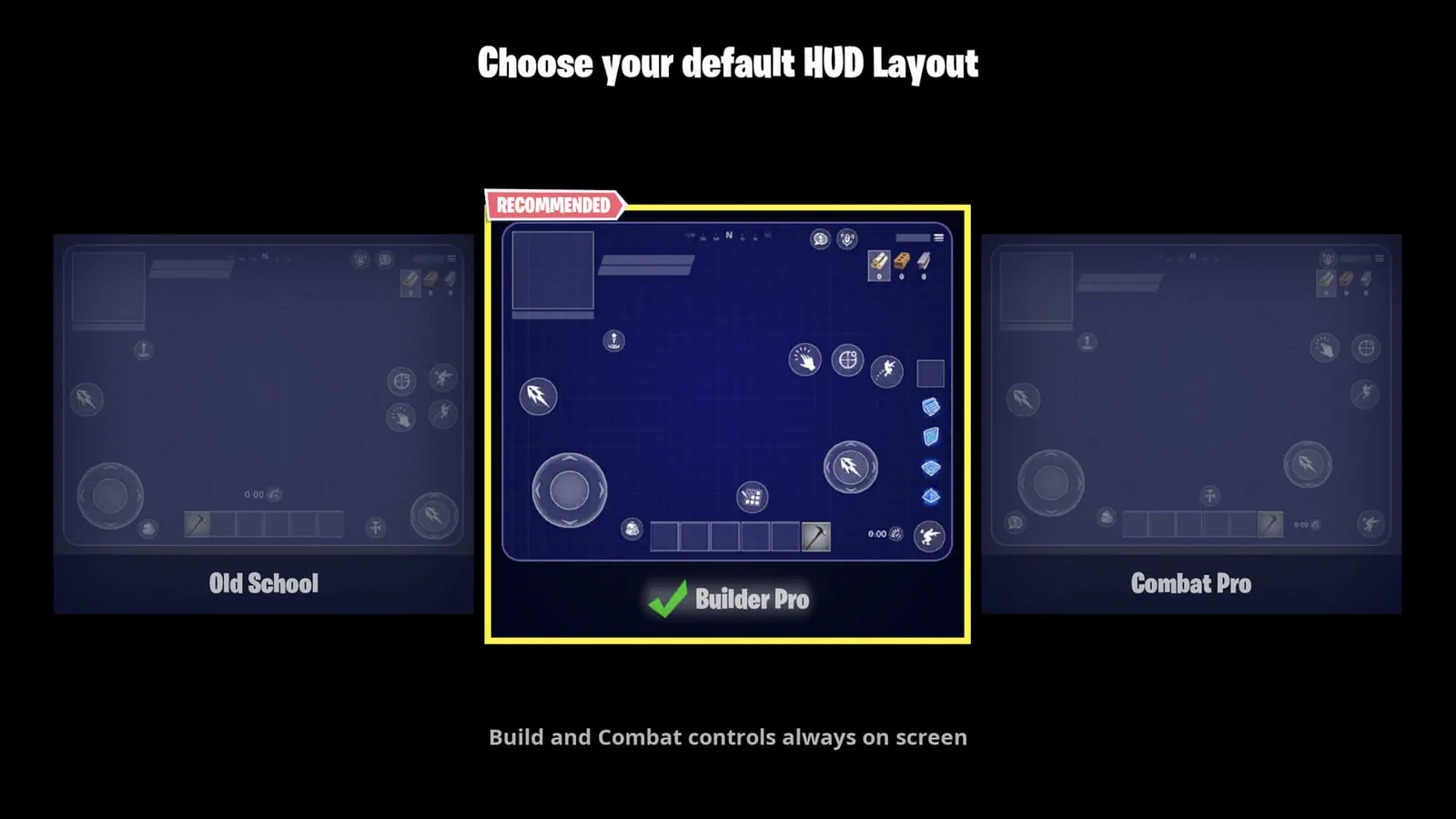
Next, open the HUD Layout Tool. Move and resize fire, aim, build, jump, and interaction controls so they do not cover the center. The editor changes touch controls, not the weapon-driven reticle geometry.
- Keep the center clear before enlarging buttons.
- Place fire and aim controls where your thumbs can reach without crossing the center.
- Check the layout in both combat and build modes.
- Save and test the layout in a real match.
Interface captures are cleaned and anonymized for clarity. Minor labels may move after a game update.
4. Choose firing mode, aim assist, or gyro intentionally
Fortnite mobile offers Auto Fire, Tap Anywhere, and Dedicated Button firing modes. Auto Fire reduces button pressure for new touch players, while Dedicated Button provides deliberate shot timing. Test the mode with the weapons you use most.
Controller and mobile players can review Aim Assist Strength in Controller Options after enabling Advanced Options. Aim assist is disabled while gyro aiming is active, so treat gyro and aim assist as alternative input strategies rather than settings that stack.
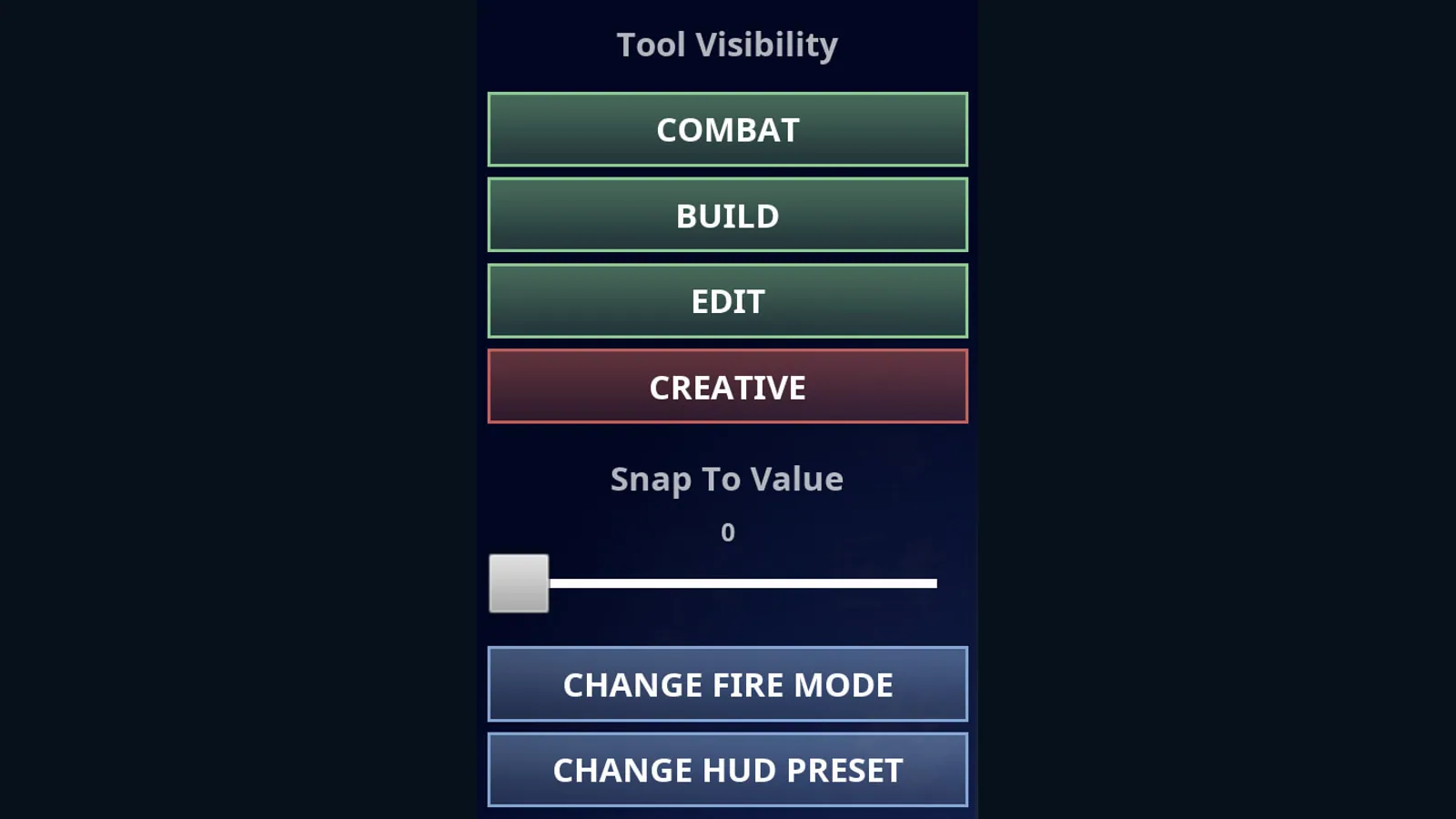
Interface captures are cleaned and anonymized for clarity. Minor labels may move after a game update.
5. Fix a missing or obstructed reticle
If the reticle is missing, return to Game UI and verify the Reticle option under Reticle & Damage Feedback. If other HUD elements are also absent on mobile, review the HUD section and restore the needed elements.
If the reticle is visible but hard to use on mobile, edit the HUD instead of searching for a crosshair-code website. Move translucent buttons away from the center, reduce unnecessary HUD items, and test one change at a time.
Official references used for this guide
We compare the in-game paths shown above with the publisher's current support material. Menu labels can still move after an update.
Common questions
Can I import a custom Fortnite crosshair code?
No. Fortnite's documented player settings do not include a native crosshair profile-code import.
Can I change the Fortnite crosshair color or shape?
The standard settings manage reticle and feedback visibility rather than player-defined shape and color. The equipped weapon determines the reticle.
Where is the Fortnite reticle setting on PC?
Open Menu → Settings → Settings → Game UI and use the Reticle & Damage Feedback section.
How do I move mobile controls away from the reticle?
Open the HUD Layout Tool and move or resize the fire, aim, build, jump, and interaction controls around a clear center area.
Why is aim assist off when I use gyro?
Fortnite disables aim assist while gyro aiming is active. Choose and practice the input method that matches how you intend to play.