Import a VALORANT crosshair profile code, select the correct profile, and verify inner lines, outer lines, outlines, and center dot settings.
Open VALORANT Settings → Crosshair, select the down-arrow Import Profile Code icon beside the profile name, paste the complete semicolon-separated code, choose Import, and confirm the new profile is selected.
Practice with the VALORANT crosshair generator
1. Copy the complete profile code
VALORANT profile strings begin with 0; and continue as semicolon-separated setting pairs. Copy the full string exactly as shown. Truncating the last value or adding text from the surrounding page will make the profile invalid.
Use the copy control on a VALORANT setup page so the native value reaches your clipboard without formatting. Crosshair Games performs that action in the browser and does not save the profile to an account.
- Copy from the first 0; through the final value.
- Do not add spaces, quotation marks, or a line break.
- Use a VALORANT code only in VALORANT's profile import control.
2. Import and select the new profile
Open VALORANT Settings, choose Crosshair, and select the down-arrow import icon beside the profile name. Paste the code, choose Import, and then make sure the newly created profile is selected.
A successful import does not delete your other profiles. Give the new profile a clear name after testing it so you can compare variants without losing track of the original.
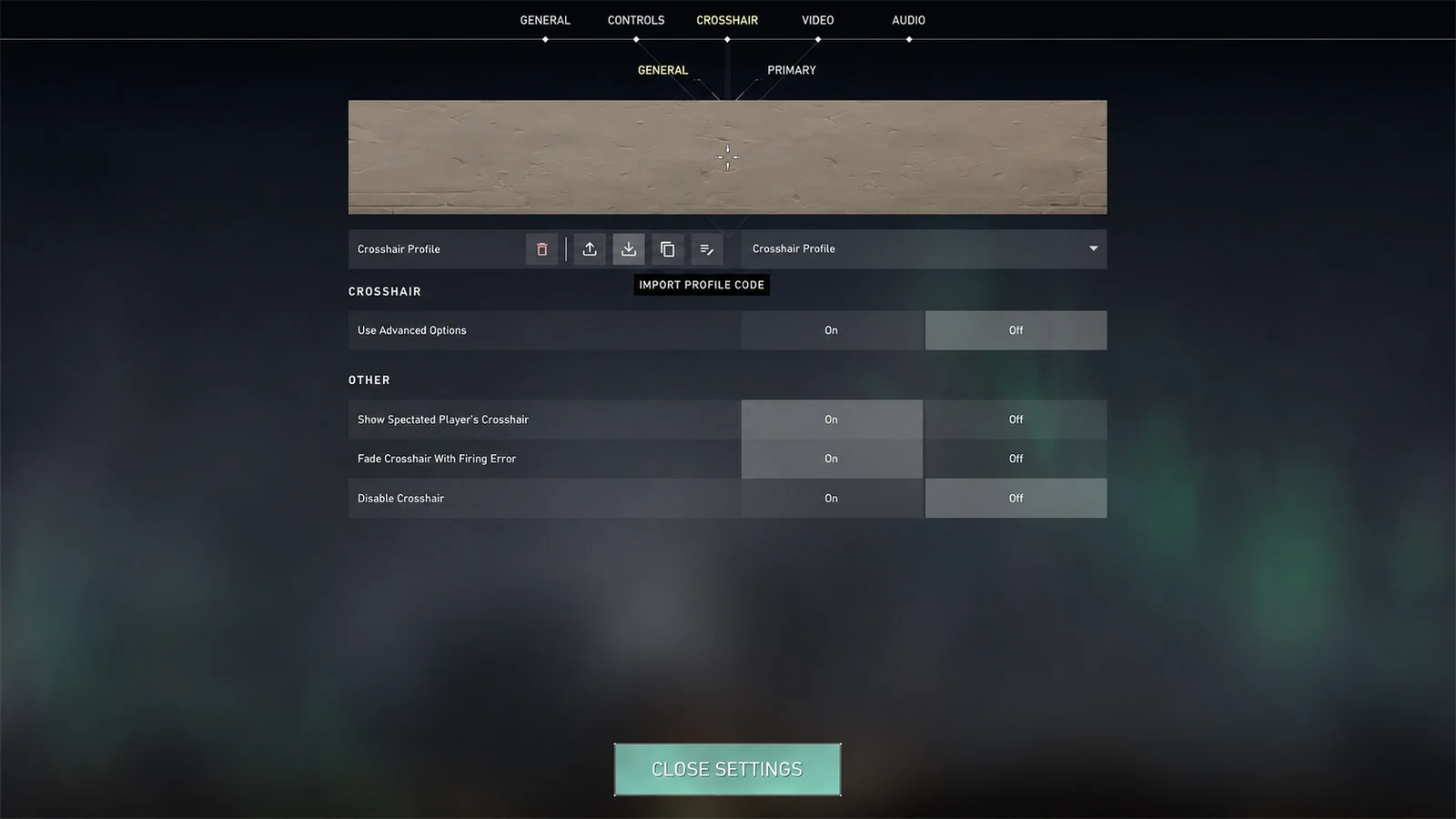
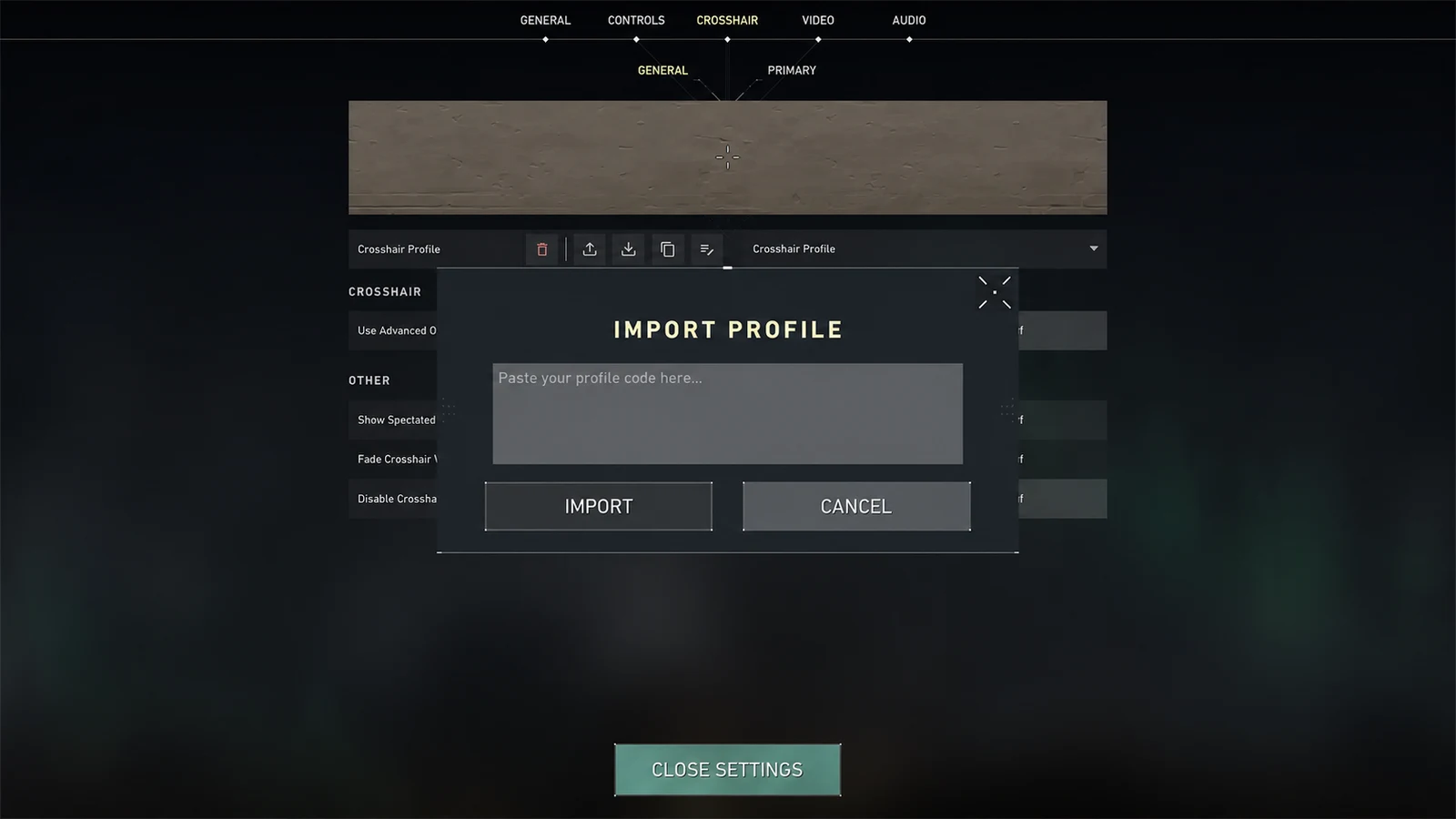
Interface captures are cleaned and anonymized for clarity. Minor labels may move after a game update.
Settings → Crosshair → Import Profile Code → paste the complete string → Import → select the new profile.
3. Check Primary, ADS, and sniper settings
Most shared profiles are judged by their Primary crosshair, but a code may also contain ADS and sniper-scope settings. Open each tab if the imported setup behaves differently while aiming down sights.
Within Primary, check center dot, inner lines, outer lines, outlines, and movement or firing error. A minimal preview can hide the fact that one low-opacity group is still enabled, so the settings panel is the final authority.
4. Test the profile in the Practice Range
Use the Practice Range to check a bright surface, a shaded surface, and a distant bot. You should find the center quickly without the lines covering the head at the range you care about.
Change one group at a time. If the shape feels busy, disable outer lines before shrinking everything. If it disappears during ability effects, try an outline or a higher-contrast color before increasing overall size.
Common questions
Where is the VALORANT crosshair import button?
Open Settings → Crosshair and use the import icon beside the profile selector, then paste the complete profile code.
Does importing a VALORANT code replace my other profiles?
No. It creates another profile that you can select, rename, edit, or delete independently.
Why do I see extra lines after importing?
The code may enable outer lines, ADS settings, or another group that is not obvious in a small preview. Inspect every Crosshair settings tab.