Import a CS2 crosshair code through the settings menu, verify the result, and fix the most common paste and profile problems.
1. Copy a complete CS2 share code
A valid CS2 crosshair share code starts with CSGO- and is split into five character groups. Copy the entire value, including the prefix and every hyphen. A missing character is enough for the game to reject it.
Open a player setup or category on Crosshair Games and use the copy button beside the native import value. The code is copied locally in your browser; no account, upload, or cloud profile is required.
- Use the native CSGO- share code, not a list of console commands.
- Avoid copying a trailing period or quotation mark from a chat message.
- Keep the code on one line when moving it between devices.
2. Paste it into the CS2 Crosshair menu
Launch CS2, open Settings, choose Game, and locate the Crosshair section. Select Share or Import from the preview area, paste the code, and confirm. The preview should change immediately.
If you are replacing a crosshair you may want later, copy its current share code first. That gives you a quick rollback without rebuilding size, gap, color, and outline values by hand.
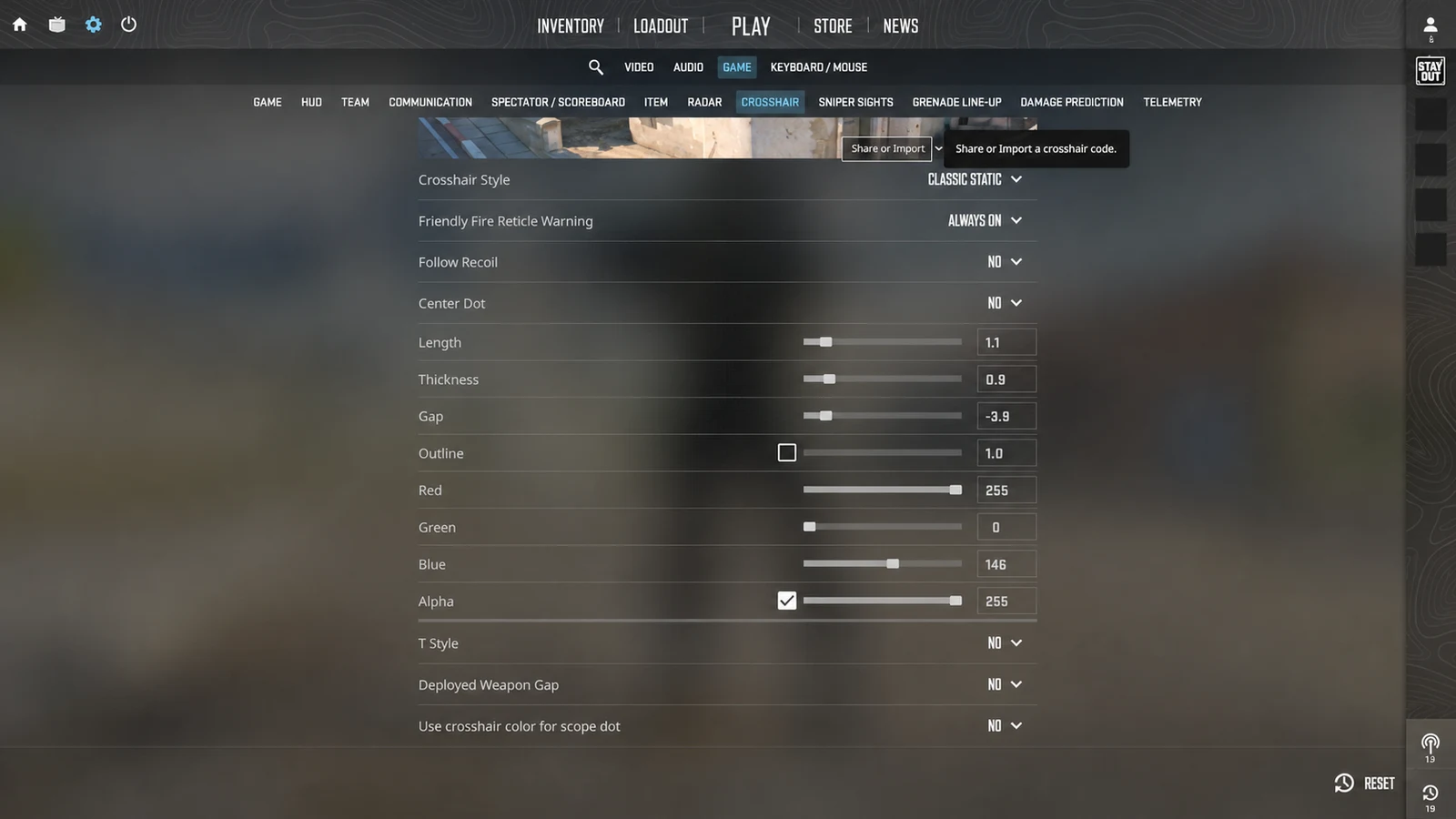
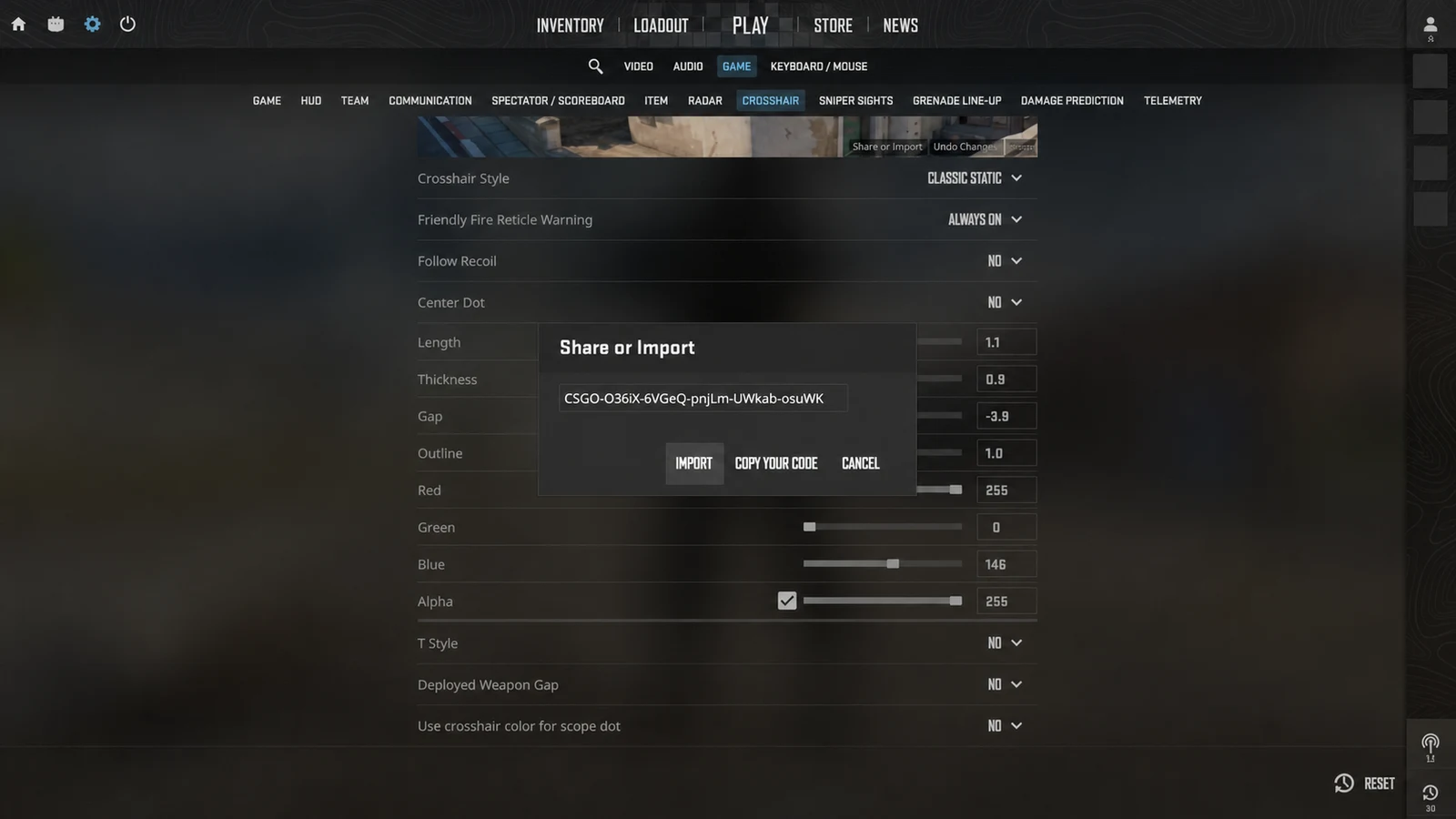
Interface captures are cleaned and anonymized for clarity. Minor labels may move after a game update.
Settings → Game → Crosshair → Share or Import → paste the full CSGO- code → Import.
3. Verify visibility before a match
An imported profile can look different from a screenshot because resolution, aspect ratio, display density, and map lighting change how thin lines are perceived. Load a practice map and check the crosshair against a bright wall, a dark corner, and a player model at range.
Keep the imported shape unchanged for a few minutes before editing it. If the center is hard to recover, increase thickness or choose a higher-contrast color. If the crosshair covers distant heads, shorten the lines or open the gap slightly.
4. Fix an invalid or unchanged import
Re-copy the code from its detail page and make sure the CSGO- prefix is present. If the import field still rejects it, remove any spaces added before or after the value and paste as plain text.
When the code is accepted but the view seems unchanged, compare the Crosshair preview rather than the menu text alone. You can also load another visibly different profile to confirm that the import control is responding, then restore the setup you want.
- Confirm that you are importing a CS2 code, not a VALORANT profile string.
- Paste into Share or Import, not the developer console.
- Restart the settings screen if the preview fails to refresh.
Common questions
Where do I paste a CS2 crosshair code?
Open Settings → Game → Crosshair, select Share or Import in the crosshair preview area, paste the complete CSGO- code, and confirm.
Can I import a CS2 crosshair code through the console?
The CSGO- share code belongs in the Crosshair import dialog. Console commands are a separate way to apply individual settings.
Why does an imported CS2 crosshair look different from a screenshot?
Resolution, aspect ratio, display density, scaling, and the scene behind the reticle can change its perceived size and contrast.