Understand how resolution, aspect ratio, pixel density, display size, and scaling change the way a CS2 or VALORANT crosshair looks and feels.
1. Numeric settings become screen pixels
Length, thickness, gap, and outline values eventually become rasterized shapes on the screen. Fractional settings may be rounded or distributed by the game engine, which is why two nearby values can appear identical—or suddenly change by a full pixel.
A browser preview is a useful reference, but the game at your native resolution is the final judge. Use previews to compare structure and use in-game testing to confirm exact perceived weight.
2. Resolution changes relative size and clarity
At a higher pixel resolution, a thin shape occupies a smaller share of the full image. On a lower resolution, the same nominal line can look heavier relative to a distant head. Display scaling and panel density add another layer to that perception.
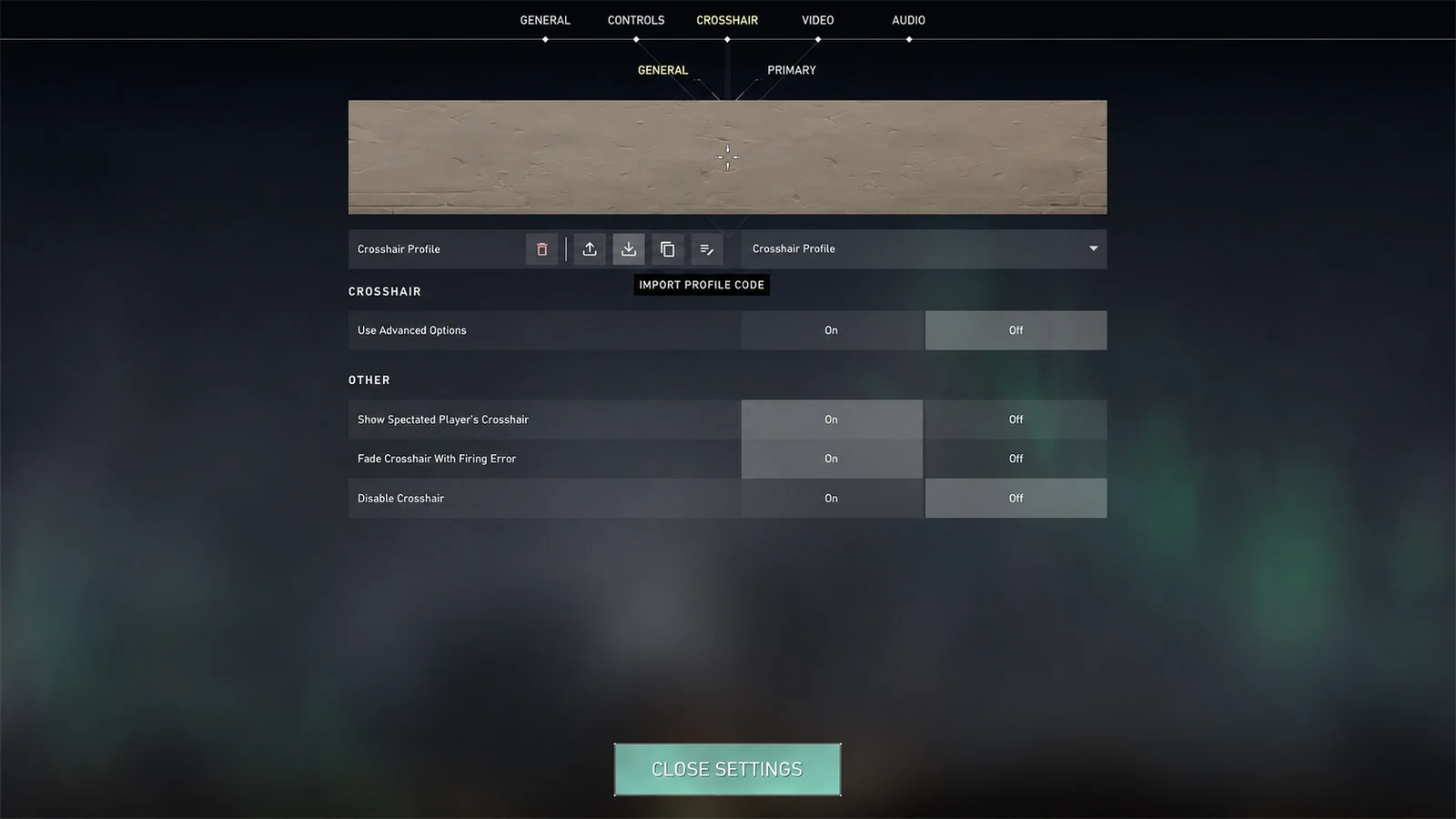
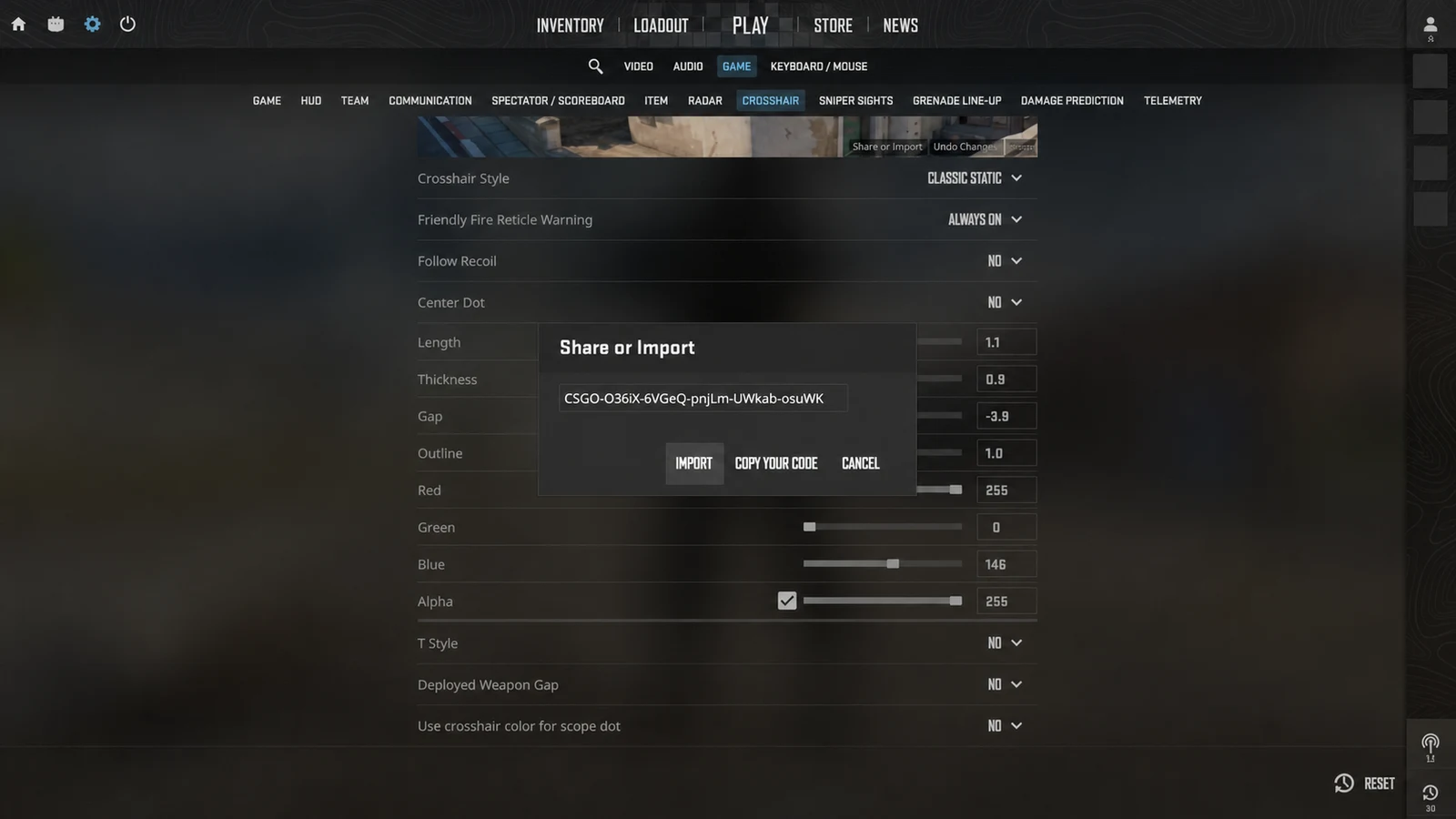
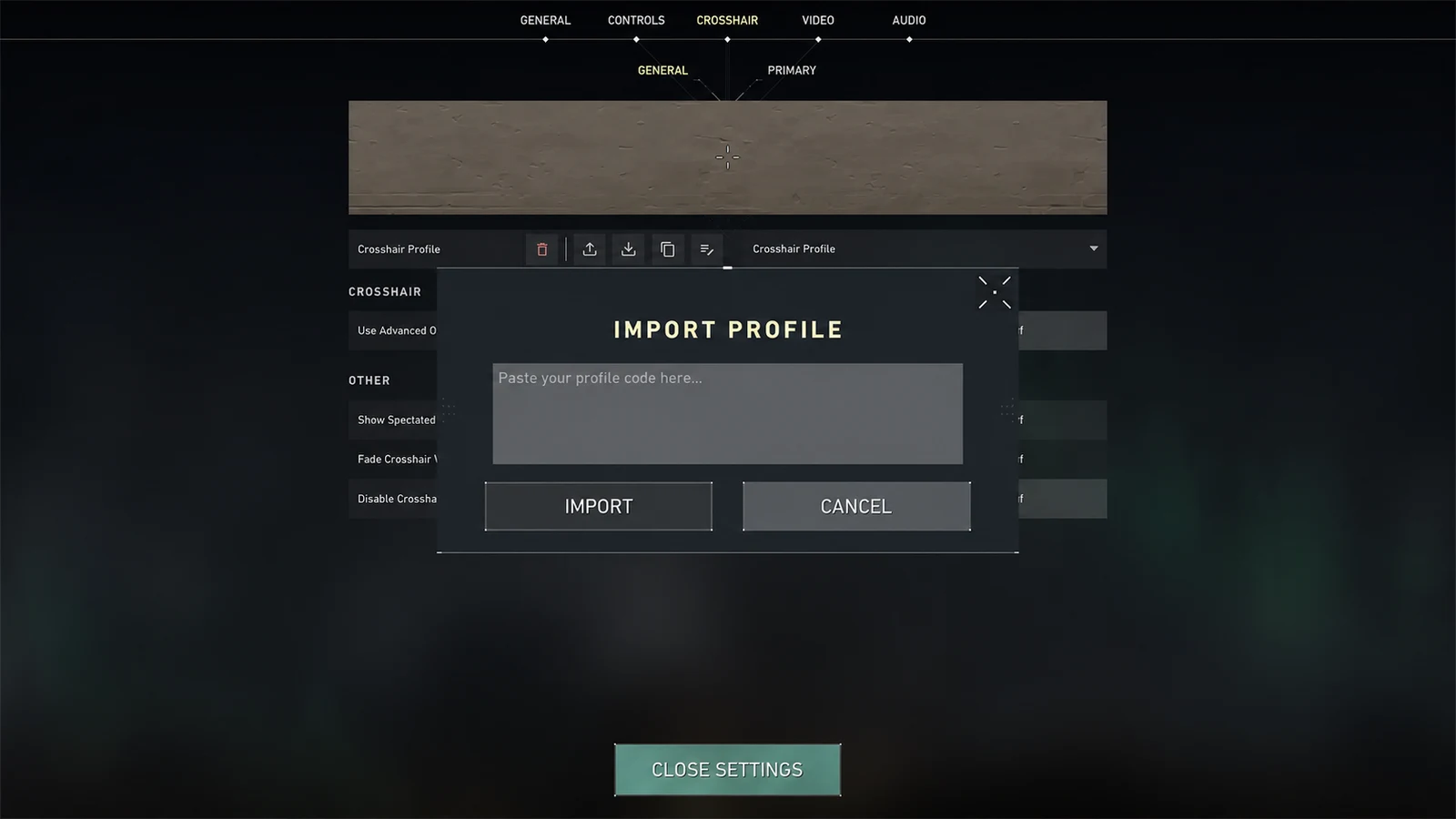
Do not copy a screenshot and assume its visible dimensions transfer directly. Import the underlying code, then assess it on the resolution and monitor you actually use.
3. Aspect ratio changes the scene around the crosshair
The reticle remains centered, but changing aspect ratio or stretch changes the apparent width of world objects and how much peripheral scene surrounds the mark. That can alter whether a gap feels open and whether line length feels distracting.
If you switch between native widescreen and a stretched competitive resolution, maintain separate profiles or recheck size and gap. Avoid changing five values at once; perceived geometry is easier to tune one property at a time.
4. Adapt a copied profile without losing its structure
Start by importing the complete code. If it is hard to find, adjust thickness or outline before length. If it covers distant targets, reduce thickness or open the center before shrinking every arm.
Preserve the basic relationship between line length, gap, and thickness while making small changes. That keeps the reason you chose the profile—compactness, open center, or strong orientation—intact across displays.
- Test in game at the final resolution.
- Change one geometry value at a time.
- Check both bright and dark scenes.
- Save the adjusted result as a separate profile or share code.
Common questions
Does the same crosshair look different at another resolution?
Yes. Rasterization, relative target size, pixel density, display size, and aspect ratio can change its perceived weight and spacing.
Should I copy crosshair settings from a screenshot?
Use a native import code when possible. A screenshot reflects someone else's resolution and scaling and can hide the actual numeric settings.
What should I adjust first after changing resolution?
Check visibility and target coverage, then make a small thickness, outline, or gap adjustment before redesigning the whole shape.