How the shape reads
The outline gives white reliable edge separation, and the moderate line length is easier to recover than an ultra-compact cross.
This is a community catalog label and modeled reference, not a verified official or current setting from Demon1. Copy the native code below only as a starting point, then test and tune it for your own display.
Copy the complete native value below, then paste it into the in-game import control.
0;p;0;s;1;P;o;1;f;0;0t;1;0l;3;0o;2;0a;1;0f;0;1b;0;A;o;1;0t;1;0l;3;0o;2;0a;1;0f;0;1b;0;S;c;1;o;1This modeled profile uses white three-unit inner lines, one-unit thickness, a two-unit offset, and outline enabled. The center remains open while the border protects the light color.
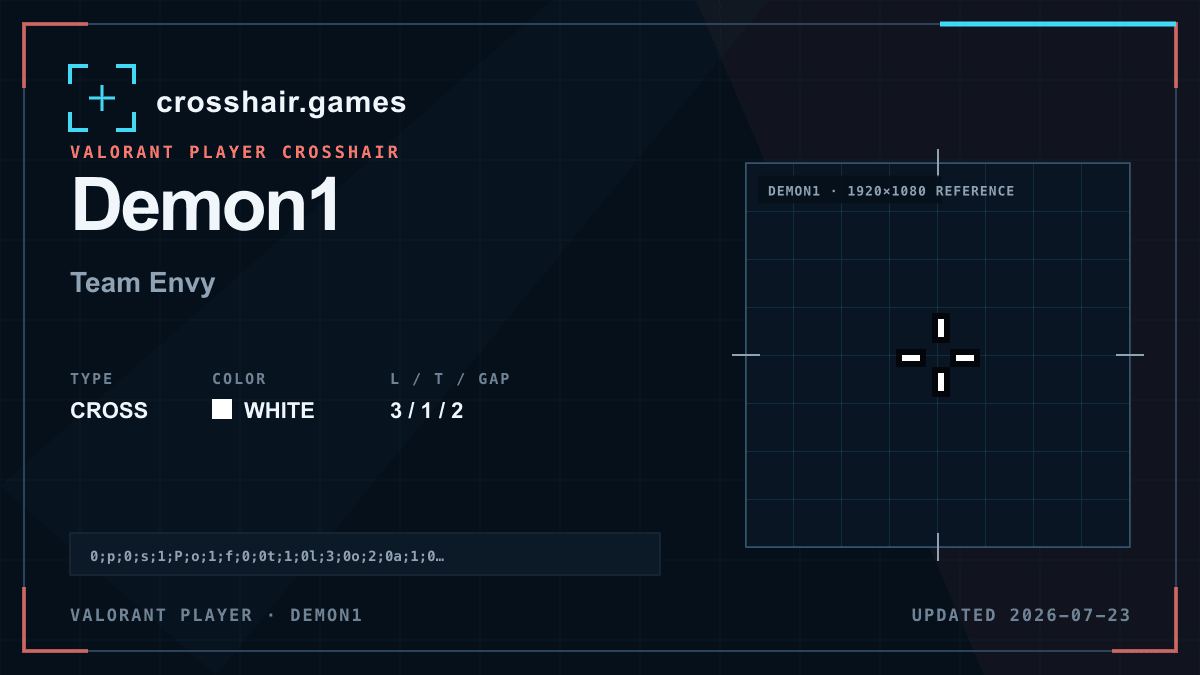
The outline gives white reliable edge separation, and the moderate line length is easier to recover than an ultra-compact cross.
A balanced option for players who want an open white cross with stronger background protection.
The border increases perceived line weight, and a two-unit offset can feel open for players accustomed to dense compact centers.
Reduce outline or offset in separate test copies; changing both at once makes it difficult to identify which property improved the view.
The code is copied locally in your browser. No account or upload is involved.
Open VALORANT and go to Settings → Crosshair.
Select Import Profile Code beside the crosshair profile list.
Paste the copied code and choose Import.
Try the crosshair in the Practice Range before using it in a match.
Compare another cross profile before choosing your final setup.